
About Course
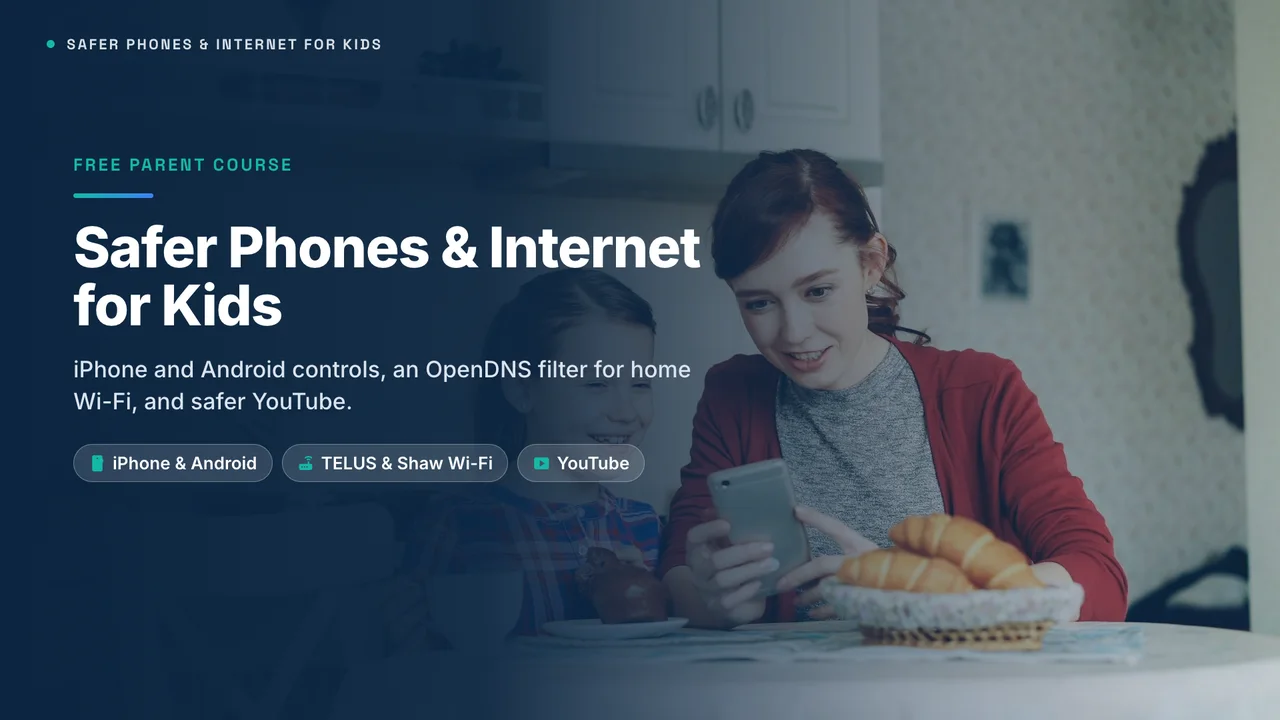
Three layers of protection, set up in an evening. Each lesson has a narrated video, picture-by-picture steps that match the real menus, and a quick check so you know it worked.
Free and public16 narrated videosiPhone & AndroidTELUS & Shaw/RogersYouTube & YouTube Kids
Who this course is for
- Parents, grandparents and caregivers of children from about 5 to 17
- Families with an iPhone, an Android phone or tablet, or both
- Households on TELUS, Shaw or Rogers internet, or using their own router
- Complete beginners: every tap is shown
What you need
- Your child’s phone or tablet, and your own phone
- Your Apple Account or Google Account password
- The admin password printed on your router’s sticker (for Part 2)
- About an hour for the whole course, or one lesson at a time
What’s inside
Part 1 — Secure your child’s phone (iPhone & Android) · 8 lessons · about 41 min
- Welcome: your family’s three layers of protection
- iPhone: create your child’s account with Family Sharing
- iPhone: set a bedtime and daily time limits
- iPhone: block adult websites, apps and surprise purchases
- iPhone: contacts, Communication Safety and location
- Android: set up Google Family Link
- Android: daily limits, downtime and app limits
- Android: Google Play, Chrome and Search filters
Part 2 — Filter your home Wi-Fi with OpenDNS · 4 lessons · about 21 min
- How a free DNS filter protects every device at home
- TELUS routers: set up FamilyShield on the Wi-Fi Hub and T3200M
- Shaw and Rogers routers: what works, and your own router
- Set the filter on each device, and test that it works
Part 3 — Make YouTube safer · 4 lessons · about 18 min
- YouTube Kids: set up the app for younger children
- YouTube: supervised accounts for tweens and teens
- Restricted Mode, smart TVs, autoplay and break reminders
- Finish: your family tech plan and monthly check-up
Phone and router screens in the lessons are illustrations based on the real menu names, so they stay readable on any screen. Menus can change with updates; each lesson links to the official help page. Scam examples use made-up names and numbers.
Course Content
Part 1 — Secure your child’s phone (iPhone & Android)
-
Welcome: your family’s three layers of protection
02:53 -
iPhone: create your child’s account with Family Sharing
02:46 -
iPhone: set a bedtime and daily time limits
02:40 -
iPhone: block adult websites, apps and surprise purchases
02:51 -
iPhone: contacts, Communication Safety and location
02:25 -
Android: set up Google Family Link
02:16 -
Android: daily limits, downtime and app limits
02:26 -
Android: Google Play, Chrome and Search filters
02:06 -
Part 1 check: securing the phone
Part 2 — Filter your home Wi-Fi with OpenDNS
Part 3 — Make YouTube safer
Student Ratings & Reviews

No Review Yet